The chosen design, the full set A. Poster
Loud and flat B. Instrument
Quiet and light C. Split stage
The fold is the idea D. Native glass
Apple-style, no rules
Taste 2 deck: settings key, Touch Bar rows, landscape circle Side rail
Full screen controls, deck from the bottom Names + logos
10 names, 10 icons E. Login window
What if: Macs as accounts Duo safe areas
What Apple keeps Keyboard: Taste 1
Dark deck Keyboard: Taste 2
Silver deck (chosen) Keyboard: Retro
PowerBook 500
Your Mac, in your thumbs.
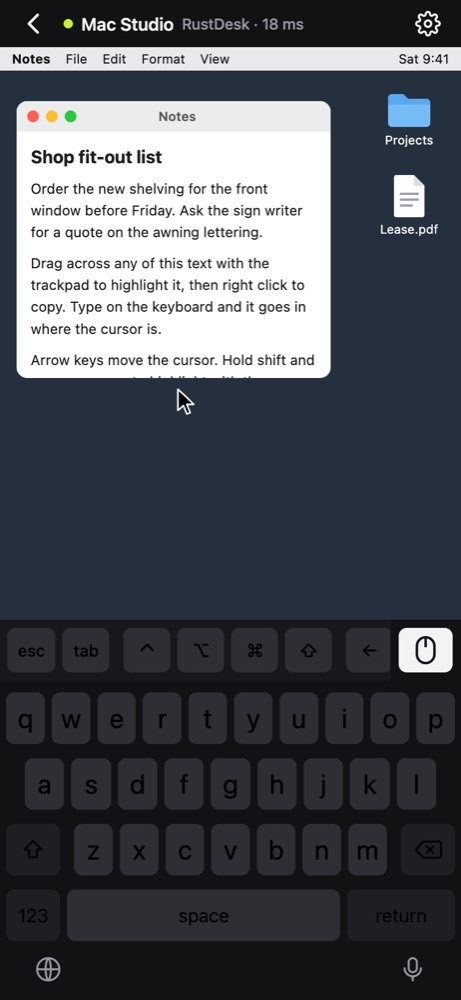
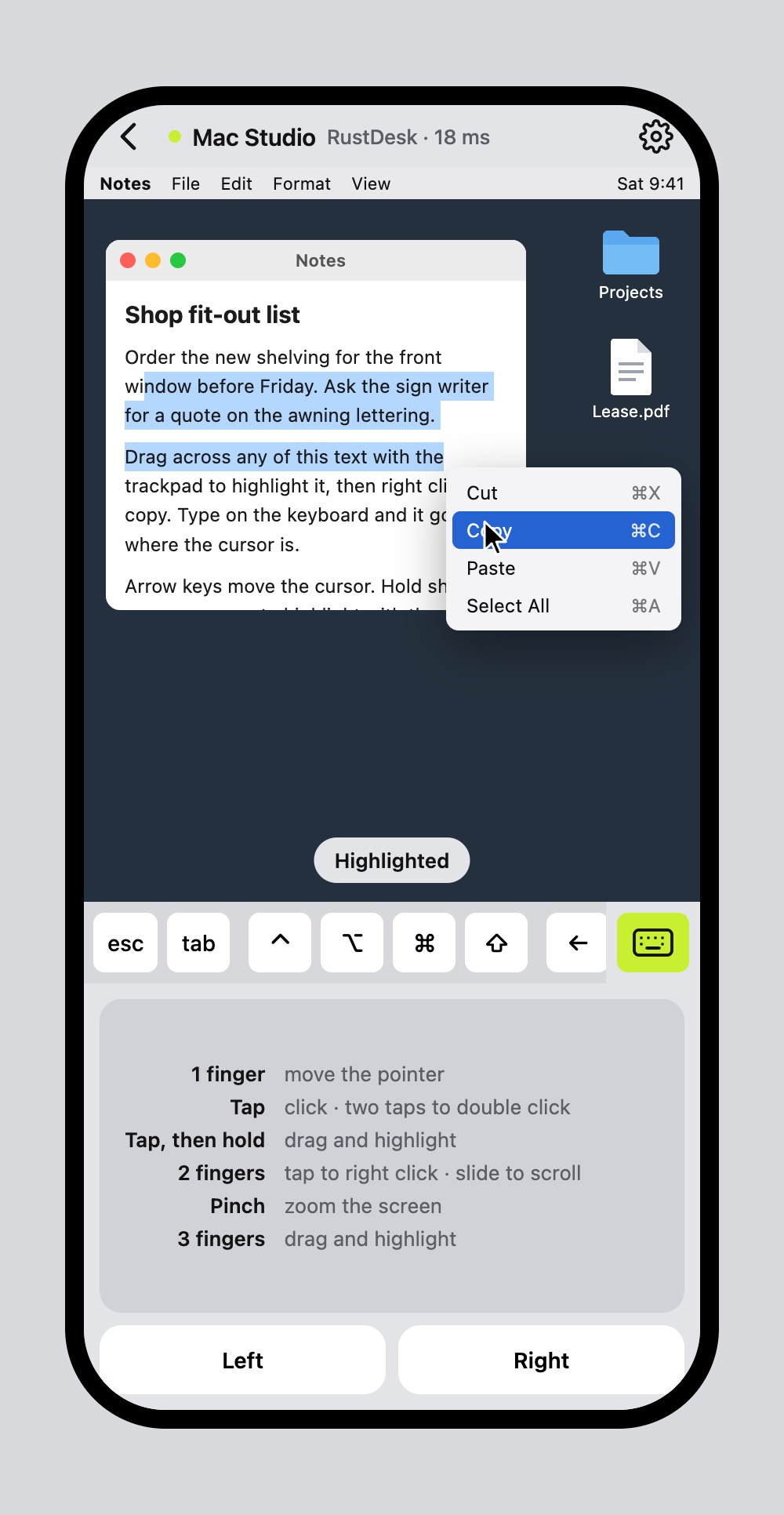
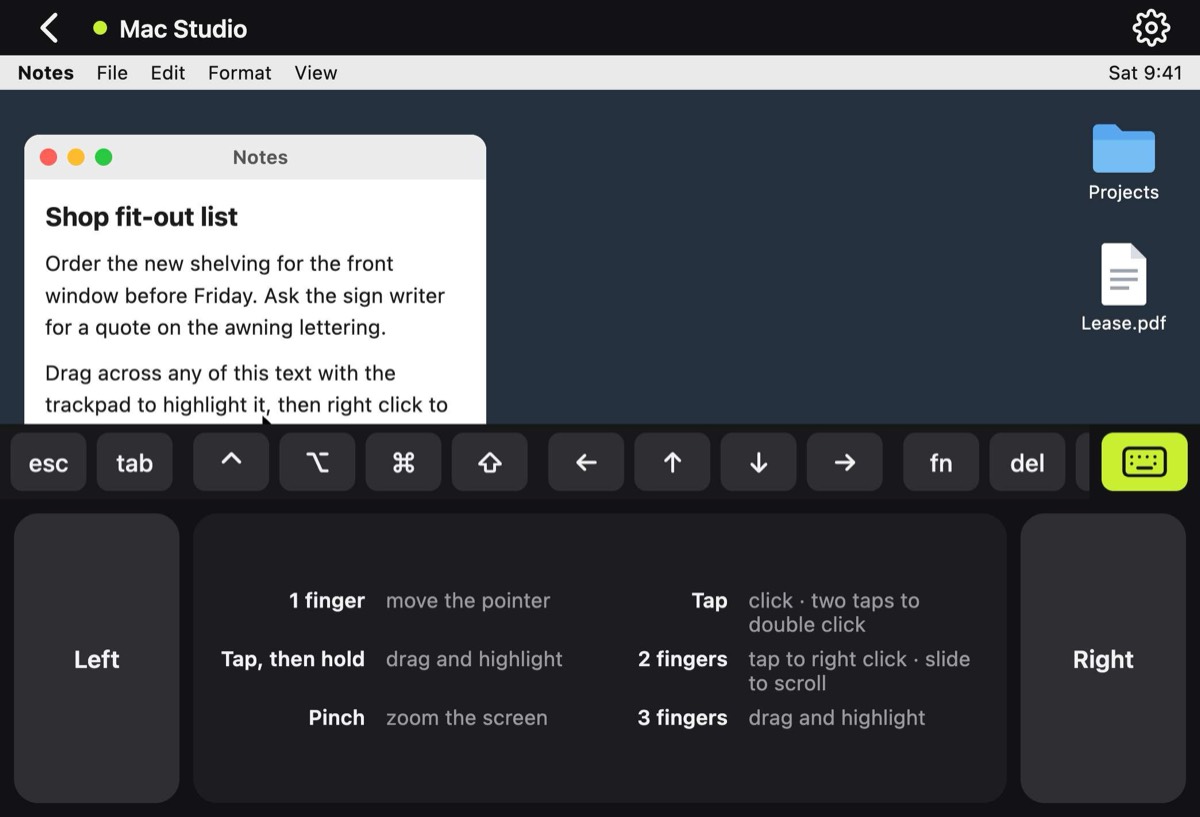
Overnight build, 17 Oct
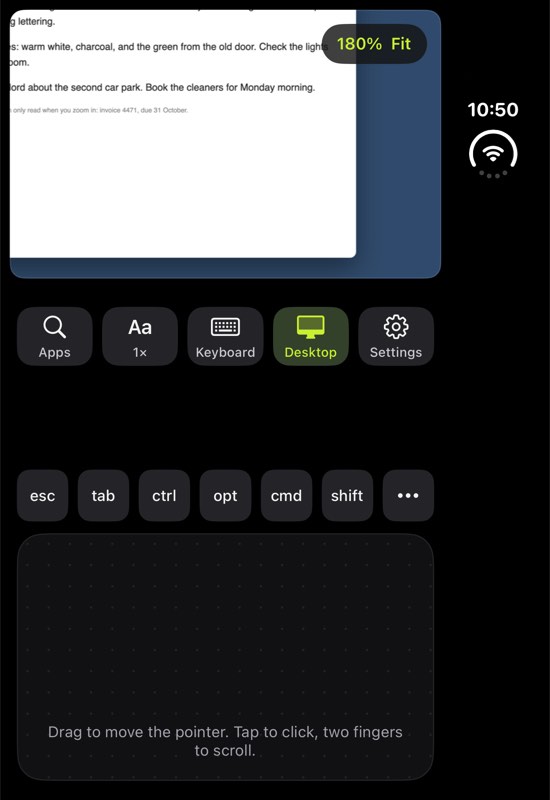
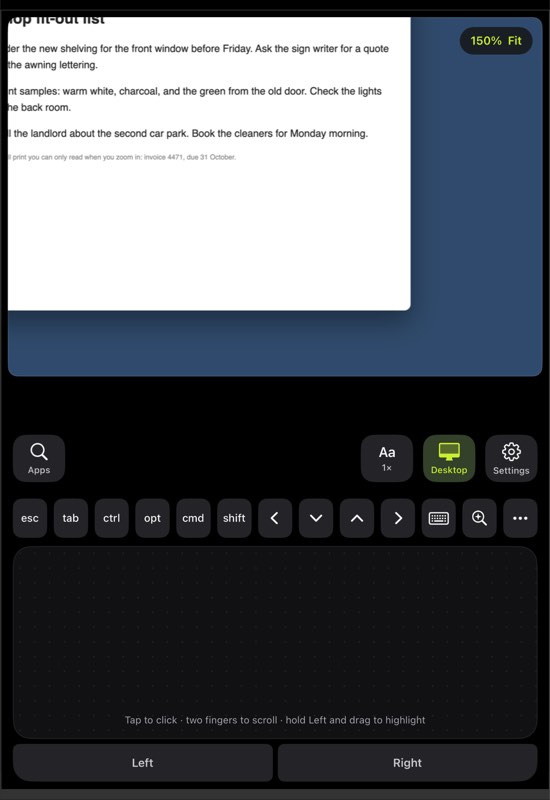
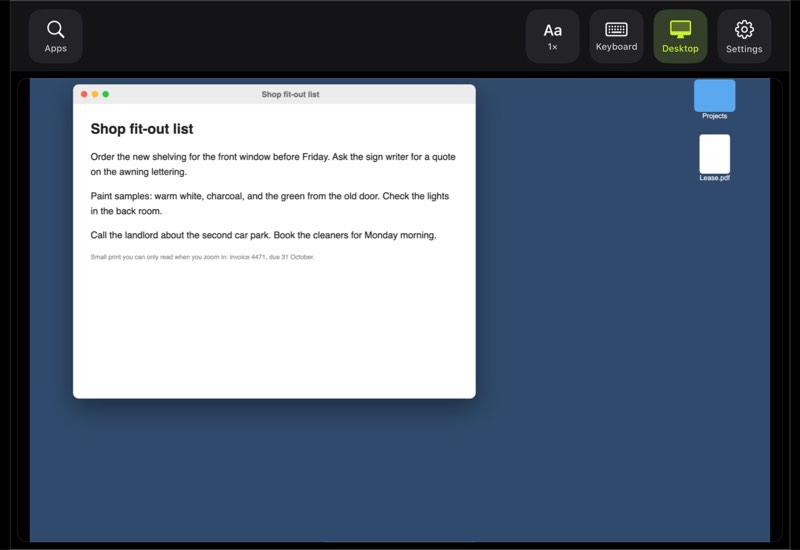
MiniMac now exists as a real iPhone app, built on Sill's open code (Apache 2.0, credited in its NOTICE). It runs on the virtual iPhone Duo against a test Mac on the Studio. Private repo: lukecon40/minimac.
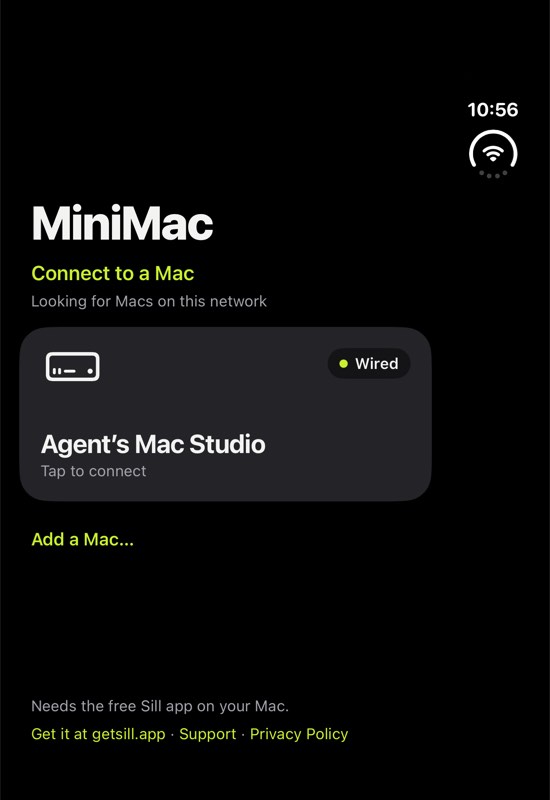
Where we are
Done
- The idea, and a mockup you can try
- Mockup works on iPhone, iPad and Duo, both ways round
- Duo screen sizes taken from Xcode's simulator
- First round of research (below)
- Name: MiniMac. Built in Swift.
Next
- Design every screen properly with the taste skill
- Turn it into a clickable prototype on this site
- Set up the Xcode project and private GitHub repo
- Virtual iPhone Duo running on the Studio (iOS 27.1)
Needs you
- Accept Grok's three changes (below)
- Name check: "MiniMac" may be too close to Apple's "Mac mini" for the App Store (see decisions)
- One screen recording of Screens instead of screenshots (see the Screens section)
What we've decided
What's out there for free
RoyalVNC
Best findA complete VNC engine written in Swift. MIT licence, so we can use and change it freely, even in a free App Store app. It already does Apple's Mac login (with your Mac username and password), the fast encodings, and copy and paste in both directions. That's the hardest part of the connection, already done.
The catch: the company archived it in September 2026, so it won't get updates and we'd look after our own copy. Its iPhone screen view was never finished, so we build our own, which we wanted anyway. github.com/royalapplications/royalvnc
The iPhone toolkit
Free from AppleOur keys sit on top of the normal keyboard (Apple supports this directly). Passwords go in the Keychain, unlocked with Touch ID or Face ID, whichever the device has. Real haptics, iPad trackpad support, and finding Macs on your network automatically. All built in, all free.
Our own streaming
Free, for laterFor RustDesk-quality video from overseas: Apple's screen capture and hardware video encoding on the Mac, sent straight over Tailscale with Apple's own networking. Grok says skip WebRTC, since Tailscale already handles the network. A small helper app on the Studio, a later phase.
Mac login and auto password
How Screens does itScreens signs in with your Mac username and password, stores them, and can type your password into the Mac's login screen for you. Its Curtain Mode, which blanks the Mac's own display, needs Remote Management turned on. We can do the first two. Curtain Mode isn't possible over standard VNC, so it moves to later (Grok's correction). Edovia help
Apple's High Performance mode
Can't usemacOS's fastest screen sharing only works between two Apple silicon Macs. Other apps can't use it, so our app gets the standard VNC path. Apple
RustDesk, TigerVNC, LibVNC, bVNC
Can't useAll AGPL or GPL. Using their code would force us to publish everything we write, so we use them for ideas and testing only.
Grok's review
Verdict: right direction, wrong schedule. Ship the VNC app first. It will feel like Screens on home Wi-Fi, not like Jump Desktop on 4G. The input is the product. Reviewed 17 Oct 2026 via grok-4.7-build.
Set a pixel budget
Change oneOne display, scaled to 1440p at most, pointer drawn on the phone at 120 Hz, and the connecting screen shows whether Tailscale is direct or relayed. Dual 5K waits for our own streaming. Measure what the Studio actually sends on day one.
Build it in layers, drop WebRTC
Change twoKeep the connection, the input and the picture separate, so the same trackpad and keys work on VNC now and our own video later. The later helper sends HEVC straight over Tailscale. VNC stays forever for the Mac's login screen.
Design the half-open Duo
Change threePicture on top, trackpad on the bottom, keyboard away, like a tiny laptop. Use Touch ID, not Face ID. Curtain Mode and password auto-type are not version one.
What users judge you on
From Screens, Jump and RustDesk reviewsA pointer that feels instant, modifier keys that never get stuck, reconnecting when you come back, copy and paste both ways, and the typed field never hidden under the keyboard. One-star reviews come from a stuck ⌘ key and a session that dies when you check Messages.
Cut for version one
Grok's suggestion, your callNetwork scanning and a computers list (you have one Studio), most settings, and a designed setup guide. Four lines will do: Screen Sharing on, password, Tailscale, connect.
Also can't use
GPLSunshine and Moonlight, including the iPhone client. Tailscreen (MIT, Mac only) is worth studying for the later helper.
What we copy from Screens
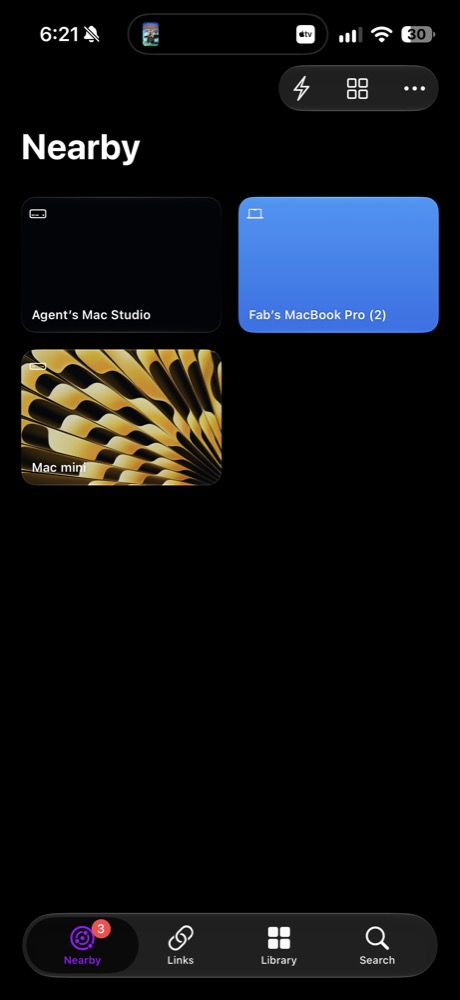
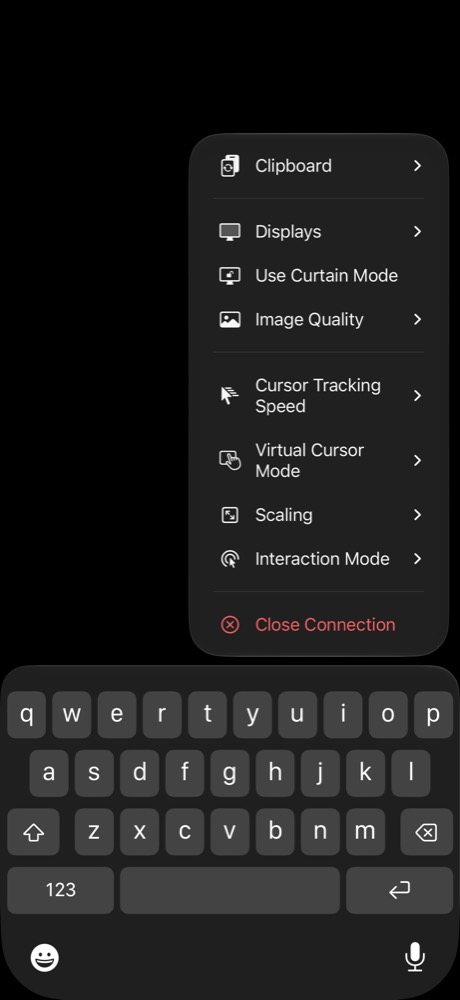
From your screenshots of Screens 5. Same bar, same menu, with the mouse button as the last button on the right, like your sketch.


Three parts to build
The look
Loading screen, setup guide, computers list, login, settings, dark mode. Layouts for the Duo folded and open, iPhone and iPad.
Effort: medium. Designed first.
Input
Touch mouse (tap where you want to click), mouse mode, pinch and pan on the screen, the trackpad panel, the key bar, the menu and the keyboard.
Effort: medium. The mockup already settles how it behaves.
The connection
Talks to the Mac, logs in, receives the picture fast and sends clicks and keys back. Works at home and over Tailscale.
Effort: the hard part, made much smaller by RoyalVNC.
Every screen to design
Designed with the taste skill, built into a clickable prototype here, and approved by you before any app code.
Launch
Loading screen and app icon. Opens straight back to the last computer.
To designSetup guide
How to turn on Screen Sharing on the Mac, with Tailscale for away from home. Shown once.
To designComputers
Your Macs, live or asleep, found on the network automatically or added by address.
To designLogin
Mac username and password, saved to the Keychain, unlocked with Touch ID (the Duo has no Face ID, per Grok). Typing your password on the Mac's login screen comes after the first App Store approval.
To designConnecting
Progress, plain-word errors, and whether Tailscale is direct (fast) or relayed (slow). Reconnects when you come back to the app.
To designRemote screen
Touch mode or mouse mode, pinch zoom, pan, follow the pointer, switch between your two displays.
Mocked upKey bar and menu
Screens-style keys above the keyboard. ••• opens shortcuts, F-keys, Spotlight, app switcher.
Mocked upTrackpad
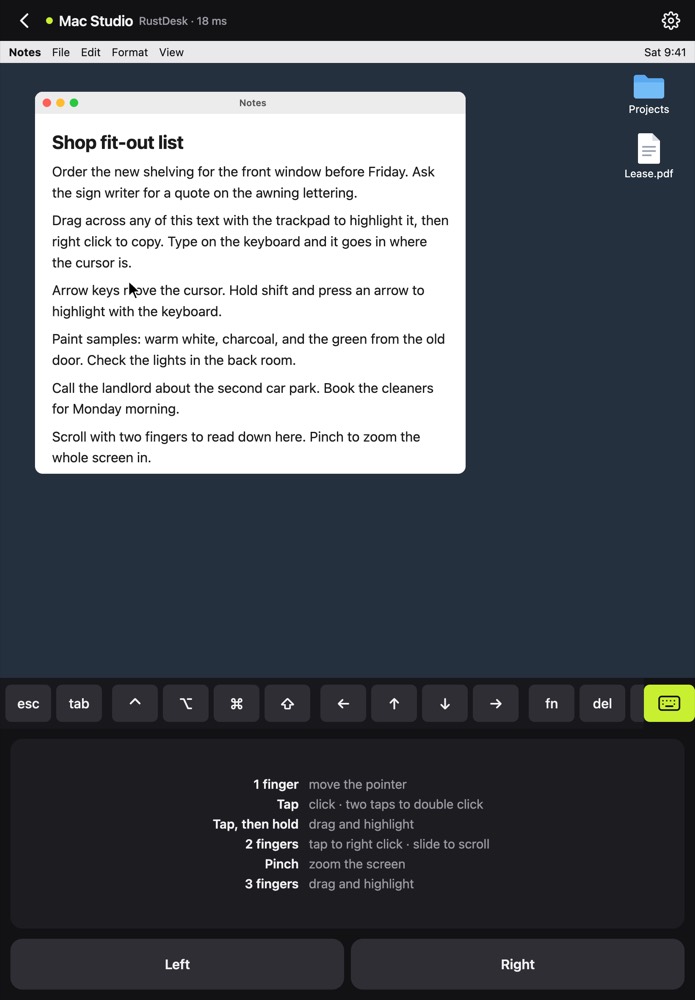
MacBook-style gestures, click and highlight, Left and Right buttons. Buttons move to either side when sideways.
Mocked upSettings
Pointer and scroll speed, gestures, keyboard, appearance, haptics, per-computer options.
Mocked upDuo fold
Unfold mid-session without dropping out, plus Split View, the split keyboard, and a collapsed key bar.
To designDuo half-open
Grok's big idea: hold the Duo half-open like a laptop. Mac screen on the top half, trackpad on the bottom half. Something a normal iPhone can't do.
To designiPad
Big screen layout, plus support for the Magic Keyboard and trackpad.
Mocked upApp Store
Icon, screenshots, a one-page website and a privacy page.
Later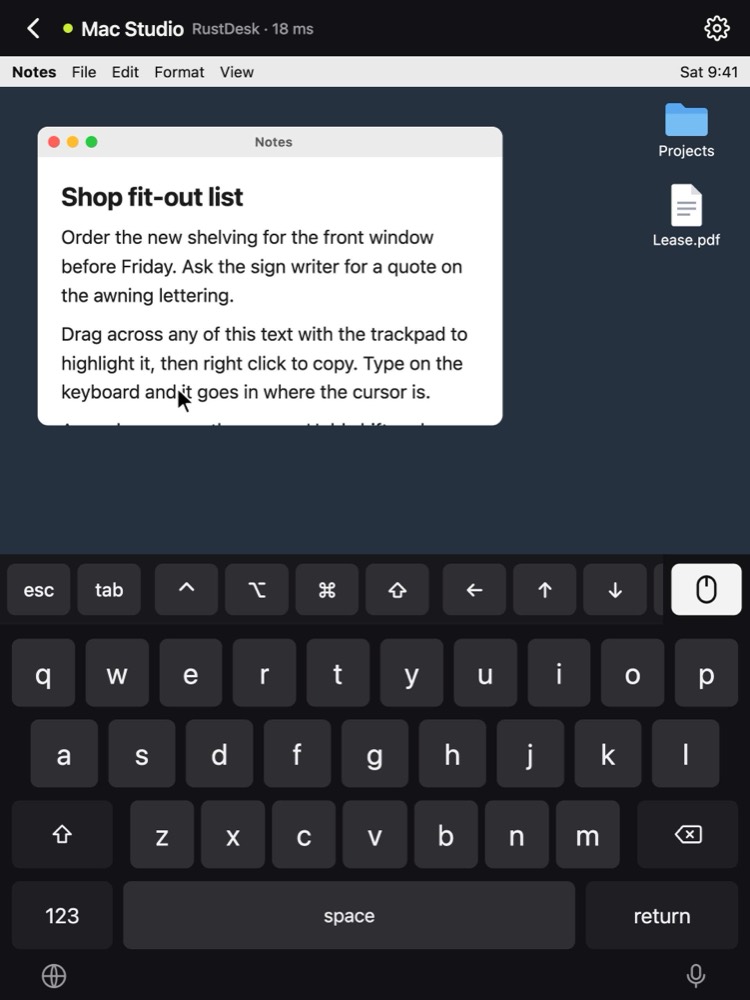
The build
Times are rough working sessions with me writing the code. Each stage ends with something you can hold in your hand.
Plan and design
- Mockup of keyboard and trackpadDone
- Fit iPhone, iPad and Duo, both ways roundDone
- Research free code and how Screens worksDone
- This plan siteDone
- Design every screen with the taste skillLaunch, setup guide, computers, login, connecting, remote, key bar, trackpad, settingsNext
- Clickable prototype of the whole app hereTo do
- Name: MiniMacDone
- App iconTo do
- Screens key bar and menu to matchDone
- One screen recording of Screens, every bar button openedInto iCloud Drive / Claude / InboxNeeds you
Groundwork
- Install the iOS 27.1 simulator so we can test on a virtual DuoDone
- New Xcode project in Swift, private GitHub repoTo do
- Our own copy of RoyalVNC, built and tested against the StudioDay one: test the Mac login and measure the screen size the Studio actually sendsTo do
- TestFlight set up so builds land on your DuoTo do
First picture
- Log in to the Studio with your Mac username and passwordTo do
- Screen picture on the phone, one display, scaled to 1440p at mostPointer drawn on the phone itself so it feels instantTo do
- Pinch zoom and two-finger pan on the screenTo do
- Touch mode: tap to click where you tapTo do
- Typing with the normal keyboardTo do
Hands on
- Key bar above the keyboard, sticky ⌘ ⌥ ⌃ ⇧ that can never get stuck, F-keys, ••• menuTo do
- Mouse button swaps keyboard for trackpadTo do
- Trackpad gestures: click, highlight, drag, right click, scroll, zoomTo do
- Mouse mode on the screen itselfTo do
- Copy and paste between phone and MacTo do
Easy login
- Computers list, Macs found on the network automaticallyTo do
- Passwords in the Keychain, Touch ID or Face ID to unlockTo do
- Type your password on the Mac's login screen for youAfter the first App Store approval, with careful wording (Grok)Later
- Setup guide and Tailscale help for away from homeTo do
- Reconnect when you come back to the appTo do
Polish
- Settings, dark mode, hapticsTo do
- Unfold the Duo mid-session without dropping outTo do
- Duo half-open laptop layoutTo do
- Switch between the Studio's two displaysTo do
- Show direct or relayed Tailscale on screenTo do
- iPad with Magic Keyboard and trackpadTo do
Give it away
- TestFlight for family and staffTo do
- App Store listing, screenshots, privacy page, small websiteTo do
Later
- Our own helper app on the Mac for smooth video from overseas (HEVC over Tailscale, no WebRTC)Later
- Curtain mode, Wake on LAN, Windows computersLater
What could bite us
Two 5K screens are a lot of pixels
Grok's blunt take: native dual 5K over VNC feels bad. The Mac may send both screens stitched into one huge picture. Version one sends one display, scaled to 1440p at most. Over a relayed Tailscale link (hotels, overseas) VNC isn't usable. Keep RustDesk for trips until our own streaming exists.
RoyalVNC is archived
No more updates from its makers. It's MIT licensed and complete, so we keep our own copy and fix what we need.
The Duo is brand new
Testing needs the iOS 27.1 simulator and your real Duo. Fold and unfold mid-session gets its own test.
Apple review
Plenty of remote desktop apps are on the App Store, so this is normal. Reviewers need a test Mac they can reach. Auto-typing passwords can look like credential stealing to a reviewer, so it ships after the first approval.
Grok's claims to confirm
Duo has Touch ID, not Face ID. RoyalVNC archived 5 October. Duo hardware arrives 23 October. Check these on the real device and the repo.